
Language: EN
Start free

How can I get a ring-on-hand photo without a photoshoot?

Upload a plain photo of the ring to Herofab's Jewelry studio, select ring and choose a model. Herofab shows exactly one ring on the ring finger, the fingertips resting on the collarbone in a close frame of the face and upper chest, briefed to keep the stone, the setting and the metal.

Fingertips on the collarbone, wearing the solitaire ring with a round clear stone on the ring finger · Jewelry studio
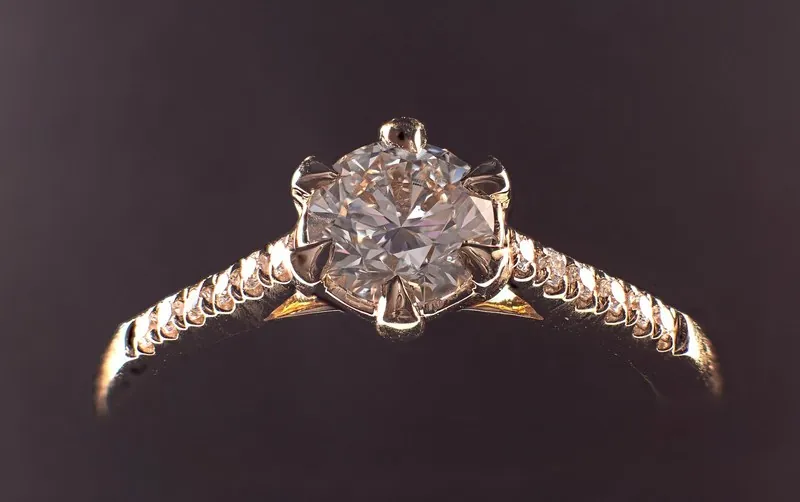
Source photo. Made with Herofab · Jewelry studio
Worth knowing

From a ring on a table to a ring on a hand.

  1. 1

    Photograph the ring alone

    Take one sharp photo of the ring with the stone and the band visible and upload it to Jewelry studio. A table or a ruler in the photo is not a problem: the tool is briefed to use only the piece itself.

  2. 2

    Select ring and a model

    The type of piece is asked before the job starts, because a ring needs its own frame. Choose a ready-made model, a model you created or a photo of a model you have permission to use, then the background and a neutral or smiling expression.

  3. 3

    One ring, one finger, in focus

    The hand is raised to the collarbone with the back of the hand toward the camera and the ring on the ring finger in crisp focus. The whole face stays in the frame from the top of the head to the upper chest, so the ring is seen worn by a person.

Source photo

The ring photo that the hand image starts from.

  • Place the ring alone on a plain, matte surface, a sheet of paper or a bare table, with a margin on every side of the photo.
  • Use window light without flash; if the phone shows up in the stone or the polished band, tilt the ring slightly until the reflection moves off it.
  • Add a close-up of the setting or an engraving, and measure the ring before uploading so its size goes in the listing text.

Prongs, bezels, halos and pavé bands

The setting decides how a ring photographs. A solitaire on prongs lifts the stone and lets light in from the sides; a bezel wraps the stone in a rim of metal; a halo circles the centre stone with small stones; a pavé or channel band carries a row of small stones along the shank. The brief asks for the same number, colour, cut and placement of every stone, and the stones are the first details to compare.

With the back of the hand towards the camera, the ring shows its top and the outer side of the band, which is where these settings sit. A prong count is easiest to read when the source photo has the stone facing the lens. When the prongs need to be seen larger than the hand portrait allows, Detail shot crops in on the stones and their setting and is briefed to keep the number of prongs or the bezel around the stone.

Signet faces, band profiles and two-tone metal

Not every ring is about a stone. A signet ring is read by its face, flat or domed, plain or engraved with a crest or initials; a wedding band by its profile, court, flat or bevelled, and by its width; a two-tone ring by the line where white and yellow metal meet. The brief keeps the shape and silhouette and the metal colour and finish, and is not to add, remove or redesign any element.

A crest on a signet face is tiny at the scale of a hand portrait, and it is the detail most worth enlarging: a crest that has gained or lost a line, a letter or a quartering is a different ring. On a brushed or two-tone band, compare the boundary between the finishes and the direction of the brushing, since the brief treats highlights in the source as light, not as metal.

The hand around the ring, checked before listing

In a ring image the hand deserves as close a look as the ring. The brief asks for five natural fingers with well-kept nails, fingertips resting on the collarbone, the elbow bent close to the body, and a wrist and forearm entering the frame in one line with the hand. Count the fingers, confirm that the ring sits on the fourth finger, and look for a hand resting somewhere it could not reach.

Then compare the size. The band should look as wide against the finger as the real one does, and the centre stone should not have grown: the brief asks for the true size relative to the finger, with the close framing, not a larger piece, making the ring prominent. A ring that looks heavier than it is misleads a buyer as much as a stone of the wrong colour.

Questions

Ring on hand photos, answered.

Will the photo tell buyers the ring size?

No. The ring is worn at its true size against the hand, but an image does not state a measurement. Put the ring size and the band width in the listing text; the image shows how the ring looks when worn.

Which finger is the ring shown on?

The ring finger, the fourth finger next to the little finger, with exactly one ring on it. The fingertips rest on the collarbone and the back of the hand faces the camera, with the ring in crisp focus.

What should I compare before publishing?

The stone, the setting and any engraving. Shape, metal colour and finish and the number, cut and placement of stones are briefed to stay as in your photo. If a detail is off, Retouch fixes a marked area of a delivered image.

Can a stacking set of rings be worn together on one finger?

Not in a ring image: the brief asks for exactly one ring on the ring finger. A stack photographed together gives the tool more than one ring to place, so photograph each ring alone and order one image per ring. Selecting the same saved model for each image keeps the hand and the face consistent across the set.

Does an engraving inside the band show in the worn photo?

Not when the ring is worn. On the finger, the inside of the band faces the skin and cannot be seen, and the image shows only what a worn ring shows. Add a separate close-up of the inner engraving to the listing, photographed on a plain surface with the light raking across the band, so that every letter can be read.

How much does it cost?

5 credits per image, plus one credit for 4K. In US dollars that is $0.20 to $0.60 per image before tax, from the largest plan to the smallest credit pack. The cost is shown before you generate, and if a job fails the credits are returned. The 20 free credits at sign-up cover 4 images with this tool.

Examples by product
Get started

Your next collection, shot this week.

20 credits at sign-up, no card required. Images made with free credits carry a watermark. Herofab also removes the watermark from those images once credits are purchased.