Language: EN
Start free

One photo, a seamless tile.

Drop a photo of a fabric, a print or a surface. The tool joins each edge to the opposite one, so the image repeats without a visible line, shows it tiled and saves it as a PNG. It runs in your browser; nothing is uploaded.

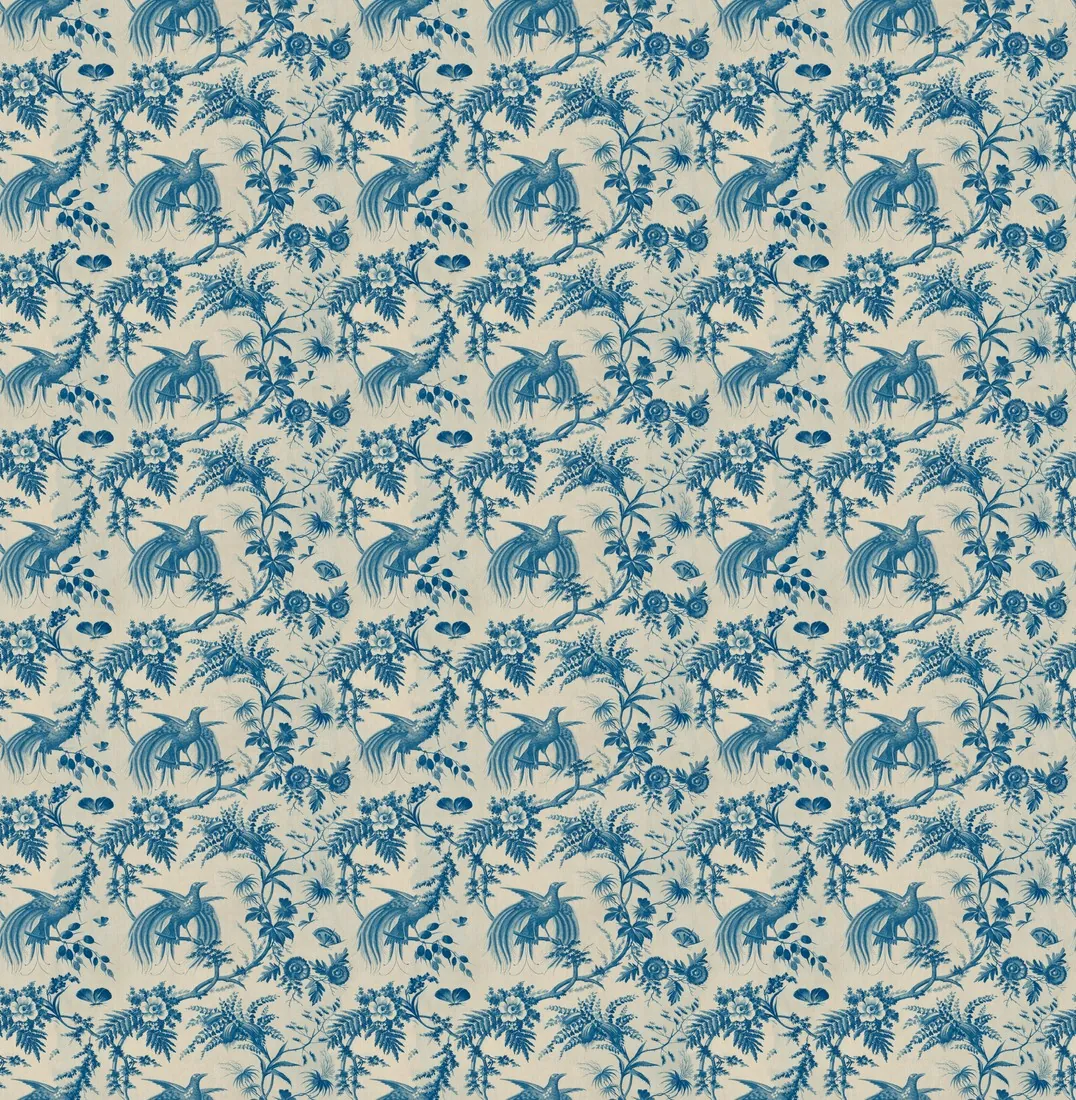
Seamless texture maker: Preview 3 × 3
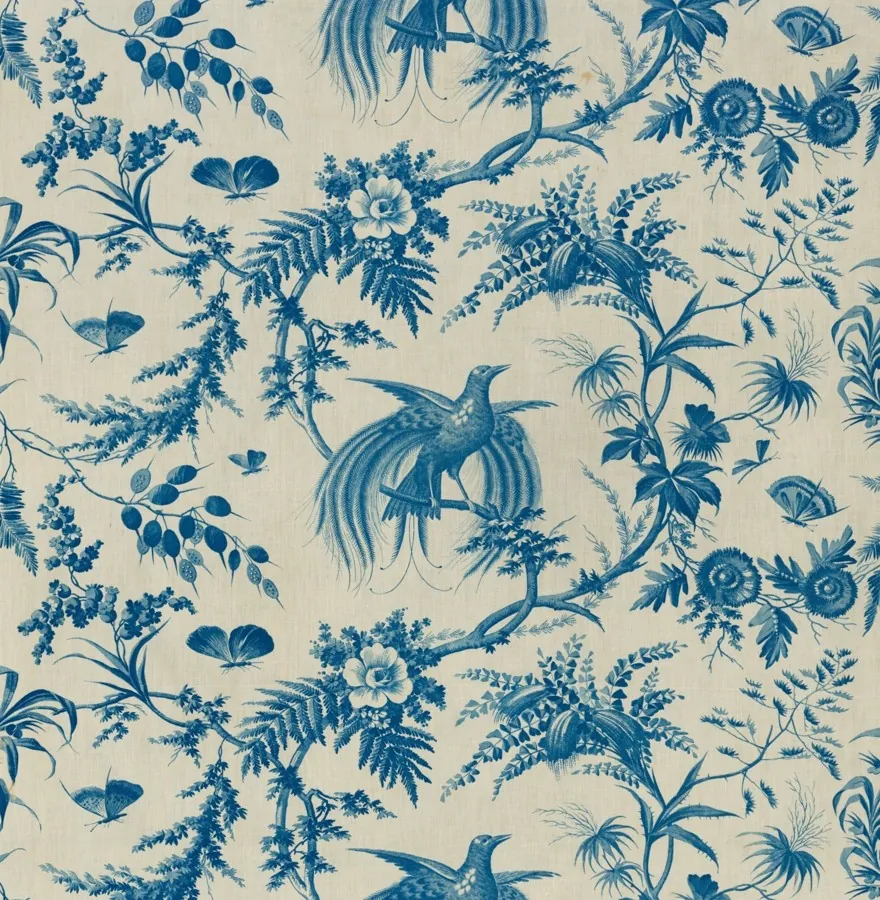
Source photo. Made with Herofab · Seamless texture maker
Free tool · first use without sign-up

Choose a texture.

Works best on a flat, evenly lit surface photographed straight on: fabric, paper, leather, wood, stone. A single product or a scene does not become a pattern.

Source photos: The Cleveland Museum of Art (CC0)

How it works

Joined edges, nothing generated.

Method
Each edge is replaced by the part of the image that lies about half a tile away, at the offset where the pattern lines up, joined along the line where the two match best; the middle keeps the original pixels
Join area
5% to 40% of the side, set before or after choosing the image
Preview
The tile repeated 2 × 2 or 3 × 3
Light
Gradual changes of light across the photo are evened out; can be switched off
Regular stripe or check
The tile is cropped by less than one repeat, so the pattern repeats a whole number of times
File
PNG, lossless, at the image's pixel size; up to 4,096 pixels on the longer side
Upload
None: the image is read and saved in your browser
Next step

Show the fabric on a garment.

The fabric studio takes a garment photo and a fabric photo and shows the same garment in that fabric or print. It runs in the Herofab app and uses credits.

Free tool · first use without sign-up

Herofab free tools continue with a free account

The first use of each tool runs without sign-up. From the second use, the tools run with a free Herofab account; files are still processed in the browser and are not uploaded. This way, every free tool remains available with no usage limit.

After sign-up, Herofab opens in the fabric studio, which shows a garment photo in the fabric or print of your tile.

Photographing a surface that will repeat well

A seamless tile can only be as even as the photo it starts from. The surface is photographed straight on, with the camera parallel to it, in soft light that falls evenly from one side: daylight from a window works, a flash leaves a bright spot that repeats with every tile. Fabric is ironed or pulled flat, paper and leather are laid on a flat table, and the frame is filled with the surface alone, without a table edge, a selvedge or a hand.

The photo should show several repeats of the print or weave, so the tool has matching areas to join along. A gradual change of light across the frame is corrected by Even out light. Folds, cast shadows, a camera tilted towards one side and a single large motif are part of the pixels and stay in the tile. Cropping the photo on the phone before choosing it removes anything that is not the surface.

Where a seamless tile is used, and what it does not include

The tile is a PNG that repeats without a visible line, so it can fill any area: a background for a web page or banner, a surface in a mockup or a 3D scene, a repeat in textile or print design software, or the swatch for Fabric studio, which shows a garment photo in that fabric or print. The tool keeps the pixels of the photo, so the tile shows the real fabric rather than an imitation of it.

A material in a 3D program usually combines a colour image with relief and roughness maps. The tool makes the colour image only; relief, normal and roughness maps come from the 3D program or a dedicated tool. The size of each repeat is set in the program that uses the tile. When the photo is too small for the intended size, the source photo can be enlarged with Upscale first and the tile made from the larger file.

Reading the tiled preview before downloading

The tiled preview shows the tile as it will repeat. It is worth looking at it from a distance as well as up close: a join shows as a line or a sudden change of tone, and a distinctive mark, such as a knot, a stain or a darker patch, shows as a regular grid once the tile repeats. Shift by half moves the former edges to the middle of the tile, where a weak join is easiest to see.

A visible join usually needs a wider join area. A grid of repeated marks needs a different crop of the source photo that leaves the mark out. Light and dark bands mean the photo had uneven light that Even out light could not fully remove; a new photo in softer light solves it. Even out light is switched off for a fabric whose colour changes on purpose, so the change is kept.

Questions

About this tool.

Does this free tool need an account?

The first successful use of each free tool is available without an account. If prompted to continue using it, create a free Herofab account. Files are processed in your browser and are not uploaded.

Is my image uploaded?

No. The file is read and processed inside your browser; nothing is sent to a server.

How does the tool make an image seamless?

Near each edge, the image is joined to the part of itself that lies about half a tile away, at the offset where the pattern lines up. Within the join area the tool finds the line along which the two match best and joins the pattern there, a few pixels wide; differences in light and tone are evened out across the whole area. At the edge only the far part shows, so the left edge continues into the right and the top into the bottom; the middle of the image stays as it was.

Which join area should I choose?

A wider area gives the tool more room to find a line where the two parts match, which suits prints with large motifs; a narrower area keeps more of the photo untouched. If a join is still visible in the preview, choose a wider area.

What does "Shift by half" do?

It moves the former edges to the middle of the tile, where the joins are easiest to judge. The repeat is the same either way; only the point where the tile starts changes.

What does "Even out light" do?

It removes gradual changes of light across the photo, such as a darker corner or light falling off to one side, so the repeat does not show light and dark bands. Switch it off for a fabric whose colour changes on purpose, such as an ombré.

What size is the PNG?

The pixel size of your image, up to 4,096 pixels on the longer side; a larger image is reduced to that size first. For a regular stripe or check the tile is cropped by less than one repeat, so the pattern repeats a whole number of times. Both sides need at least 64 pixels.

Does the tool use AI?

No. The tile is made only from the pixels of your image; nothing is generated or added. A perspective that narrows to one side or a large single motif stays in the tile and shows in the repeat. A soft-edged motif on a transparent background can leave a thin edge along the join, visible on a dark background. When a regular pattern looks photographed at an angle, the tool says so.

Can the tile be used as a texture in a 3D program?

Yes, as the colour image of a material. The PNG is lossless and repeats on all four sides, so it can be tiled across a surface at any scale set in the program. The tool does not make relief, normal or roughness maps; those are created in the 3D program or with a dedicated tool from the same tile.

Can the tile be printed on fabric or paper?

Yes. Print and textile design software repeats the tile across the printed area, so the pattern can cover a larger piece than the tile itself. Each repeat is printed at the tile's own pixel size, so the print provider's resolution requirement decides how large one repeat can be; a small source photo can be enlarged with Upscale before the tile is made.

More free tools
Get started

Your next collection, shot this week.

20 credits at sign-up, no card required. Images made with free credits carry a watermark. Herofab also removes the watermark from those images once credits are purchased.