Crops, heavy pages and file names that fail
On the store page every product image is cropped to the aspect ratio chosen in the layout settings. A product photographed in another shape loses whatever falls outside that ratio, so a tall vase or a long belt is the first to suffer. Narrow images add a second problem, since they may appear blurry.
Uploads can also fail before they reach the page. File names with accented letters, question marks, percent signs or ampersands may not upload or may cause unexpected issues. A product page loaded with many heavy files works against the light page weight the platform recommends, even when each file is under the limit.
Images made in the layout ratio from the start
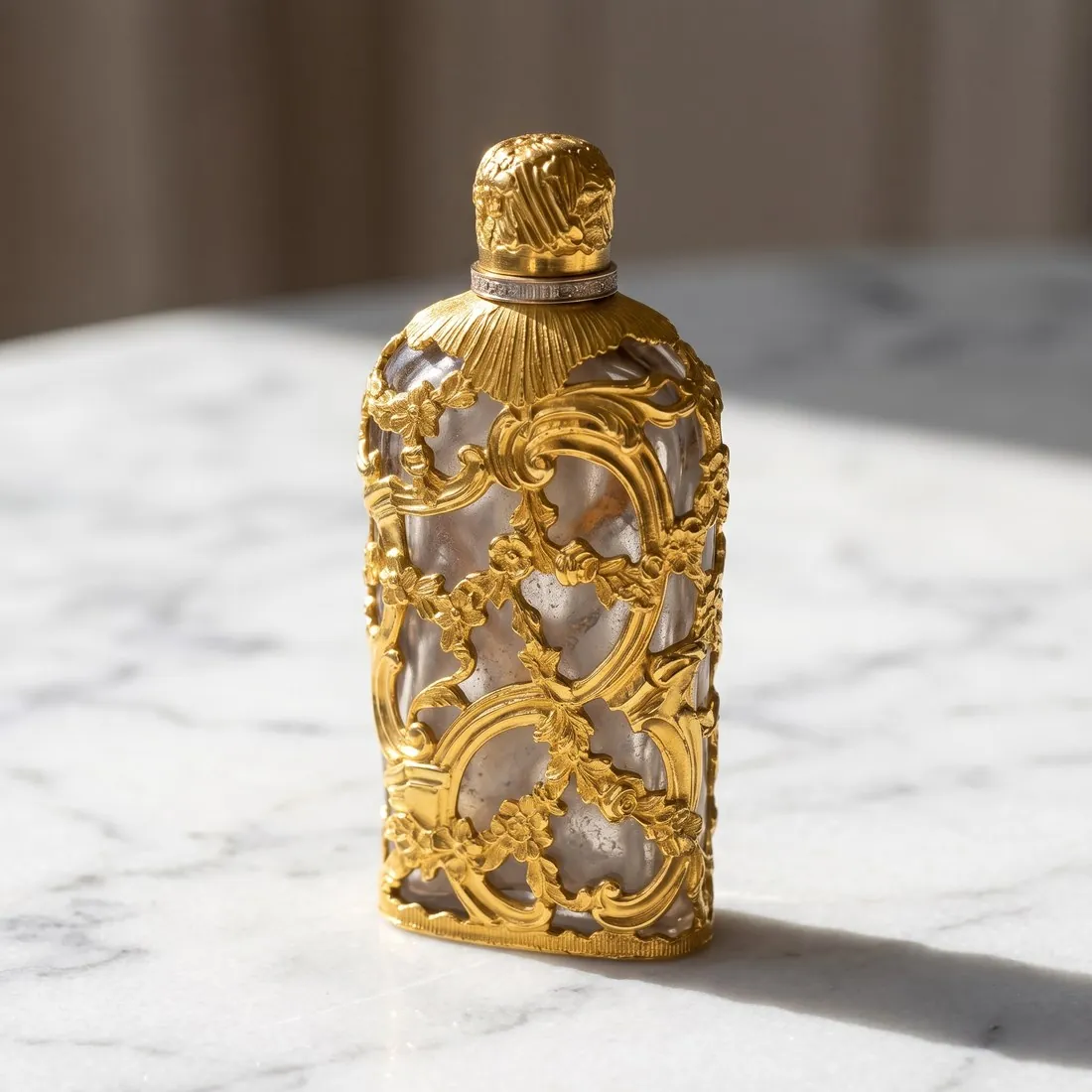
The product studio delivers square, four-by-five, three-by-four, story and wide images, so each picture can be ordered in the ratio the layout uses and the automatic crop has nothing to remove. A studio ground at a front angle makes a calm first picture, and a marble, wood or linen scene can follow it.
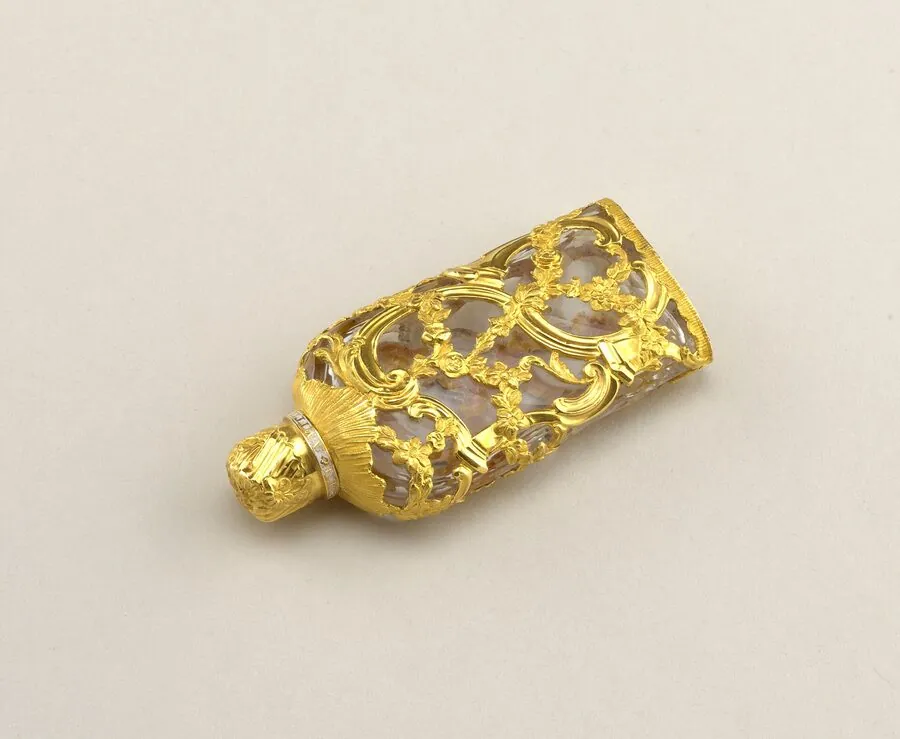
Where an approved picture has the wrong shape, Extend frame adds background around it instead of cutting into it, and the product is not redrawn. Detail shot frames a close-up of a buckle, an embossed lid or a woven tag; its square and portrait formats match common store layouts.
Width, weight and naming before upload
Square 2K output clears the width under which images may appear blurry, and 4K reaches the width the platform calls ideal. The platform then makes up to seven versions at different widths and converts uploads to WebP by default, so the delivered file serves as the source for all of them. The JPG download is the lighter of the two formats.
This store has no preset in the free resizer or compressor. The image size checker tests weight, megapixels and format against its published limits in the browser. Before upload, rename each file using only letters, numbers, underscores and hyphens, and keep the alt text of every product image within its character limit.