Square thumbnails meet rectangular uploads
Every upload is turned into three square thumbnails by default, and the largest of them matches the resolution given as the example for zoom. A rectangular image placed in a folder without the Keep aspect ratio setting is distorted by those square sizes.
Resolution has a cost as well. The documentation notes that loading times can increase with higher resolution, so a very large file slows pages without improving the zoom. And since a 3D model cannot serve as a product cover, a product with a model file still needs an image as its cover.
Cover, variant and zoom images from one photo
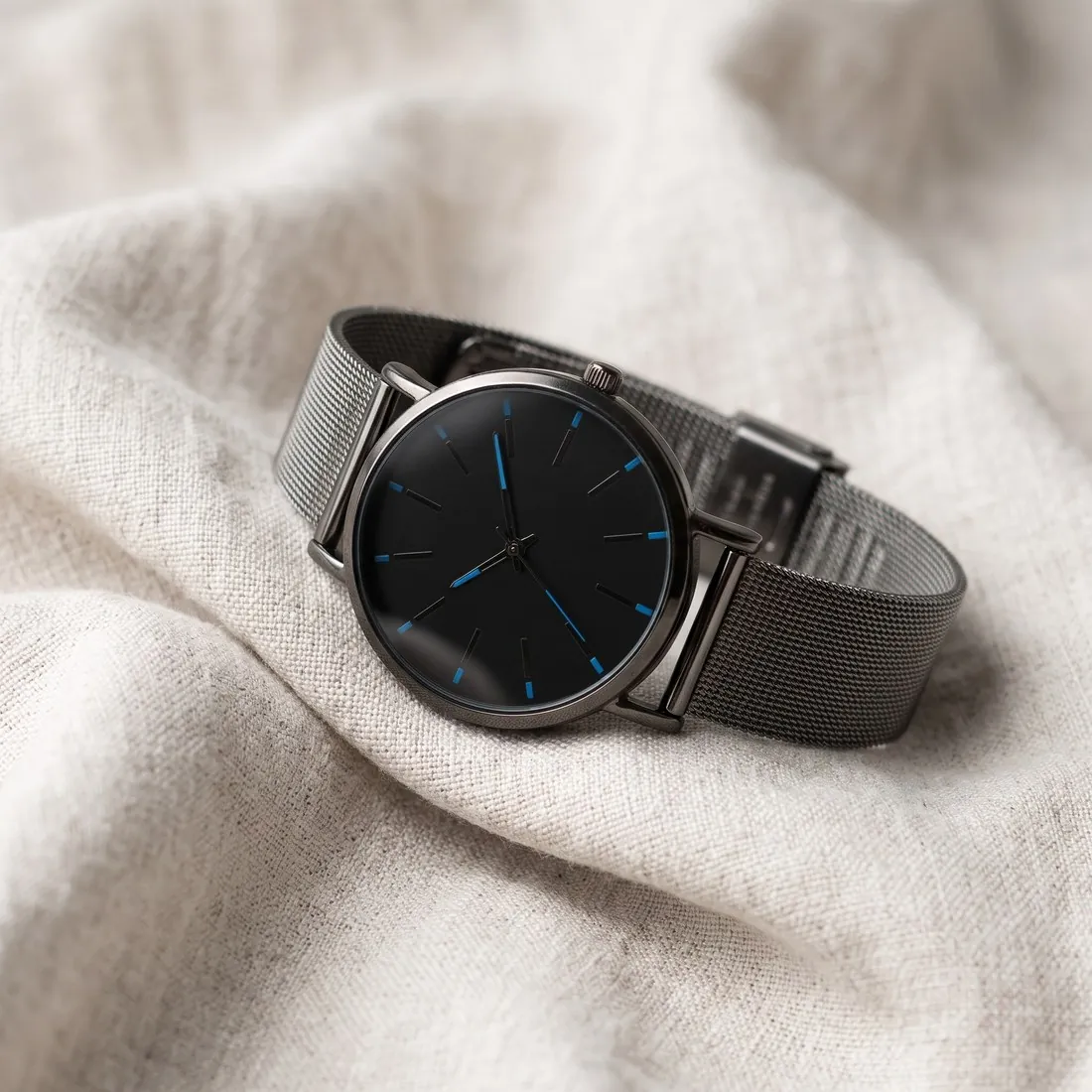
The cover is the picture a listing shows among many others at reduced size. The product studio makes it square on a calm studio ground, the shape every default thumbnail takes. For garments, Ghost mannequin's 3D hollow-body view is an ordinary image file and can serve as a cover, unlike a 3D model.
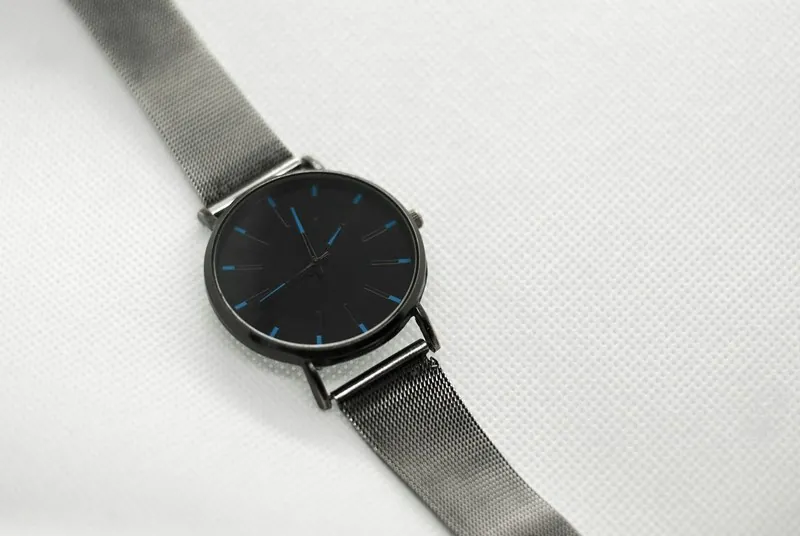
A separate image can be assigned to each variant, and Colour variants keeps the scene and the framing of the approved cover while the shade changes. Where shoppers zoom, Detail shot frames a close-up of a weave, a dial or a seam from the same source, delivered square like the rest of the media.
Media folders, resolution and metadata
Square 2K output is above the recommended display size and above the largest default thumbnail, so each thumbnail is a reduction of the upload, never an enlargement. 4K adds file weight that the recommendation does not ask for. Portrait and landscape images belong in a folder with Keep aspect ratio switched on.
No free resizer or compressor preset exists for this shop system, since its rules name a square recommendation and no weight ceiling. The image size checker reads format and dimensions in the browser. Alt text and meta title are entered per media file after upload, not written into the image.