A weight limit, import routes and missing variants
The only hard number on a product image is its weight, and a detailed PNG crosses it easily; pixel size does not help a file that is over the maximum. Product and variant image fields also refuse SVG files, and animated AVIF files are not allowed either.
The route an image takes matters as well. Images added through a CSV import or the API get no responsive variants, so they are served without the smaller versions an inline image receives. A file meant for a large zoom view then reaches small screens at full size unless it was sized and optimised beforehand.
Main image, More images and the detail positions
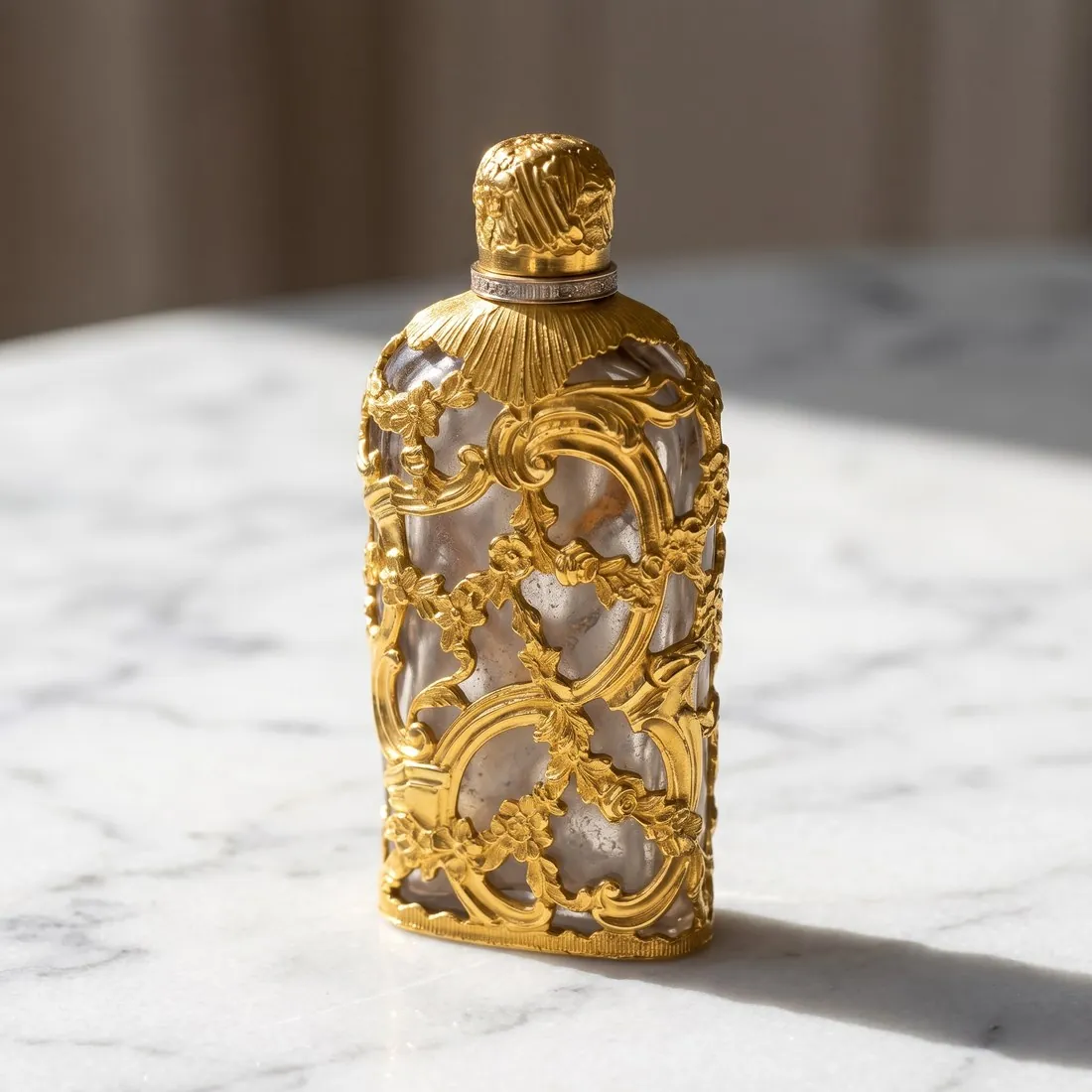
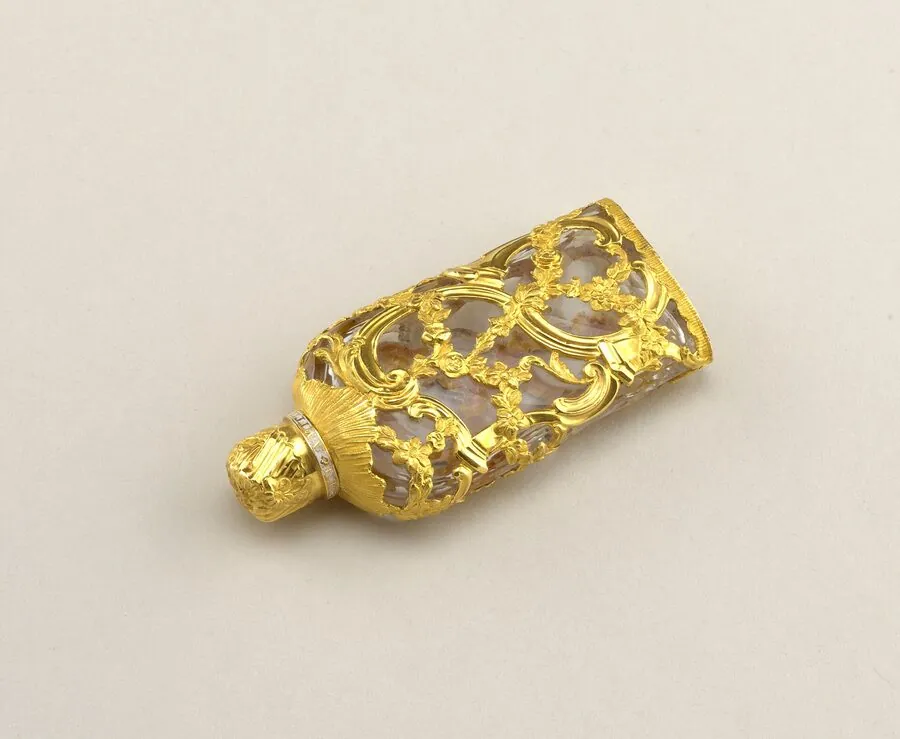
The Main image field takes the clearest whole view, which the product studio delivers on a studio ground or in a scene, square or upright. The More images field holds the rest: three-quarter, side and top-down views from the same source, a scene on marble or wood, and Detail shot close-ups of a dial or a clasp.
Every image in the multi-image field can carry its own alt text, written by hand or generated by the platform's AI feature for JPG, PNG, GIF, WebP and AVIF files. Herofab downloads are PNG or JPG, so both routes are open, and a close-up can name the exact part it shows.
Compressor preset and the 4K width threshold
The full set of seven responsive variants is described for images wider than a stated width. Square 4K output is wider than that threshold, square 2K output is not. A 4K image therefore gets the complete ladder of sizes, but its file is heavier, so the JPG download or a compressed copy is the one that goes up.
The free compressor preset saves a JPG under the weight limit, lowering quality first and pixel size only when needed; with no minimum pixel size in the rules, it stops before a quarter of the original width. Its new file drops the AI marker embedded in Herofab images. For CSV or API imports, order the size the layout needs.