One upload, every size the theme asks for
The store builds the thumbnail, the Quick View picture and the hover zoom from a single uploaded file, so whatever is wrong with that file is repeated at every size. A theme's documentation may name another optimum than the platform's figure, and then the theme's figure leads.
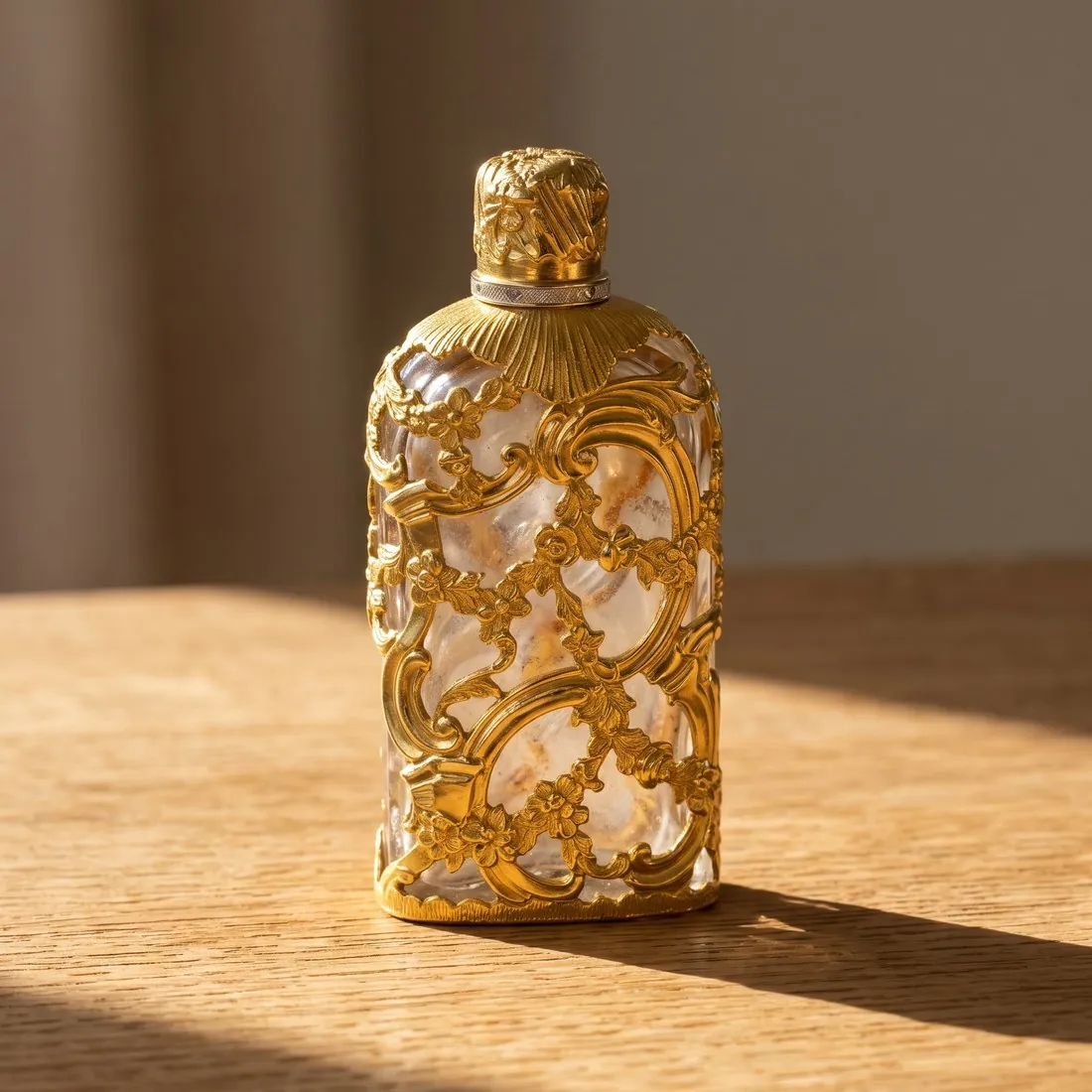
Shape is where most catalogues drift. An image whose ratio does not match the theme's settings is stretched or shrunk, not cropped, so a round watch turns oval and a tall bottle turns squat. Every thumbnail cut from that picture repeats the distortion.
Studio images for the default slot and the gallery
The first image in the list becomes the default on the product page and in Quick View. The product studio makes that picture on a studio ground at a front or three-quarter angle, and it delivers square, four-by-five, three-by-four, story and wide formats, so the ratio the theme expects is chosen when ordering.
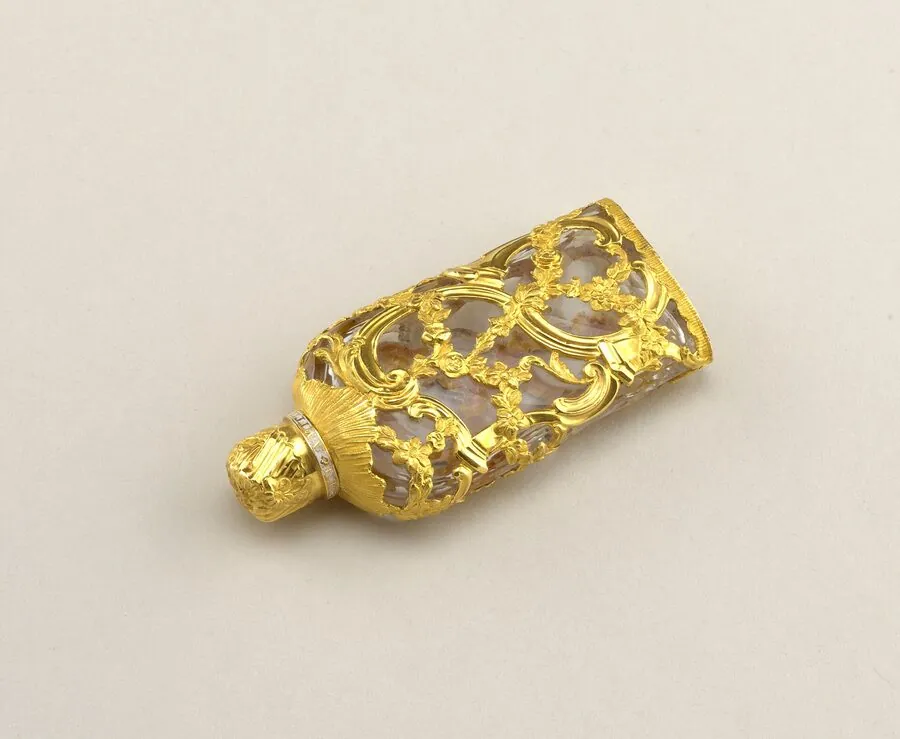
Later positions carry what the default cannot. Detail shot frames a close-up of an engraving, a closure or the stitching from the same photo, which suits a gallery where shoppers hover to zoom. A variant holds a single image, and Colour variants recolours one approved picture so that each variant keeps the same framing and composition.
Resizer and compressor presets for this store
The store is not among the marketplace sizes offered at download inside Herofab, so the delivered file goes up as it is, already in the theme's ratio. Square 2K output is above the optimal square, and in recent Cornerstone-based Stencil themes srcset serves smaller responsive sizes made from that upload.
For photos from other sources there are two free presets. The resizer fits a photo inside the optimal square with padding and never crops it; the compressor saves a JPG under the weight limit per image. Both write a new file, so embedded metadata, the AI marker in Herofab images included, is not carried over.