Language: EN
Start free

Wix product images, above the minimum in 4K.

Wix recommends a minimum resolution for product images, names the aspect ratios for them and recommends square for mobile. Herofab's product studio sets a product in a studio or styled scene from one photo. Ordered in 4K, a square image clears that minimum on both sides; 2K output stays below it.

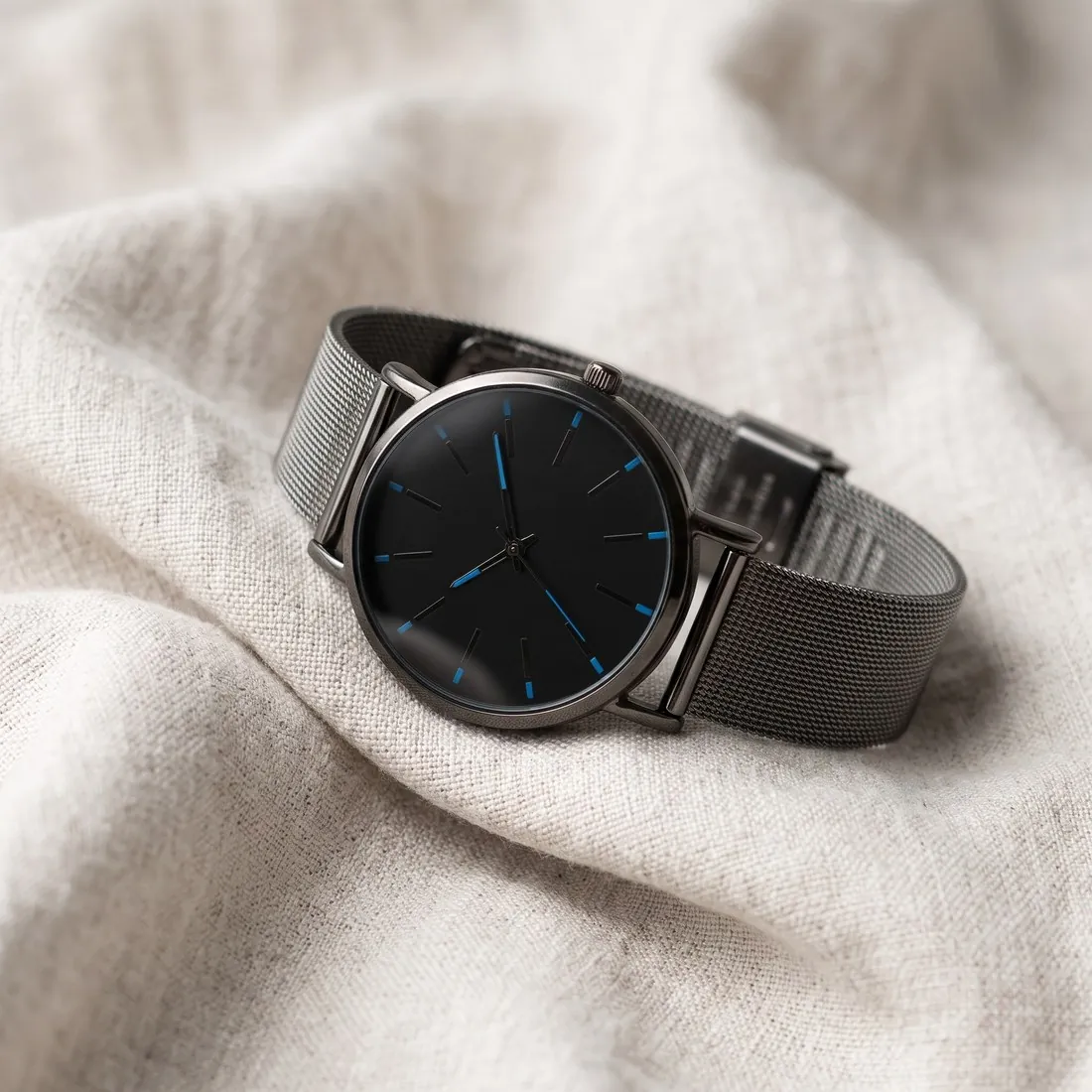
The mesh-strap watch with a black dial resting on soft white linen · Product studio
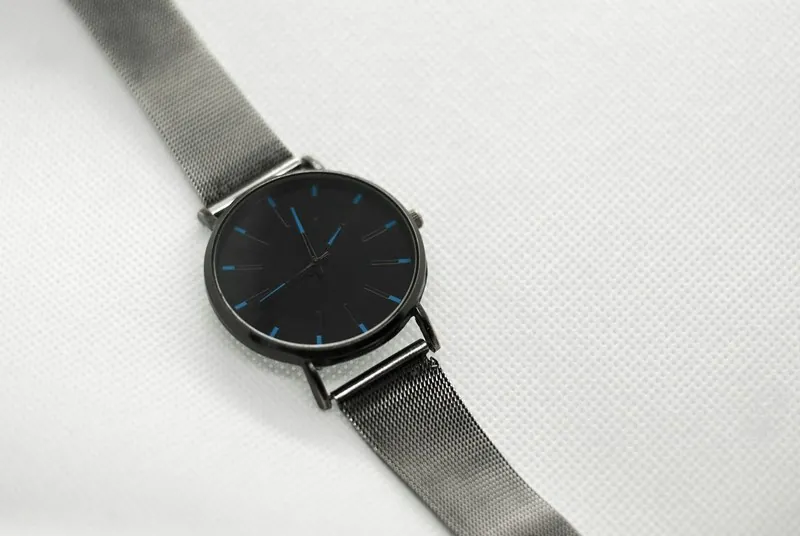
Source photo: Plain product photo. Made with Herofab · Product studio
Worth knowing

What Wix asks of a product gallery.

  1. 1

    A minimum that calls for 4K

    The minimum resolution Wix recommends for product images is higher than Herofab's 2K output. Square 4K output is above it on each side, and so is the three-by-four portrait in 4K. For a Wix store the resolution is therefore decided when the image is ordered: the free image size checker reports a 2K file as too small for Wix.

  2. 2

    One ratio for each product

    Wix recommends one aspect ratio for all images of a product. With the gallery's crop setting, images of different ratios are cut to one size and part of an image may be lost. Square, the ratio Wix recommends for mobile, is on Wix's list and among Herofab's formats, as are an upright and a wide one. Pick one per product and keep it.

  3. 3

    Images belong to options, not variants

    An image can be linked to each product option on Wix, but not to each variant. Where colour is one of the options, every colour needs its own image. Herofab's Colour variants tool makes those from a single product photo; hold the scene, the angle and the ratio constant across them, and check each colour against the real item.

Minimum
Wix recommends 3,000 × 3,000 pixels as the minimum resolution for product images, for optimal display
Aspect ratio
16:9, 3:2, 4:3, 1:1, 3:4, 2:3 or 9:16; 1:1 is the recommended ratio for mobile
Formats
JPG, PNG, GIF, JPEG, JPE, JFIF, BMP, HEIC, HEIF, TIFF, TIF, WEBP, AVIF, JPEG 2000 and RAW; animated WEBP images are converted to a static image
File size
Up to 50 MB for an image and 15 MB for a GIF
Resizing
Uploaded images are converted to the sRGB colour space, and Wix serves them compressed as AVIF on the live site
Variations
An image can be linked to each product option, but not to each variant
Alt text
Alt text can be added to each product image
Colour
Wix asks sellers to make sure the colour space of all images is sRGB
Source photo

Photographing a product for a Wix gallery.

  • Move close enough that the product fills the phone's screen while every edge stays inside it; a 4K image shows fine detail, and that detail has to be present in the source photo.
  • Shoot each colour option from the same spot on the same surface, so that the images linked to the options agree in angle and scale.
  • Hold the phone level with the middle of the product and square to it; one viewpoint across a product's photos supports the single aspect ratio Wix recommends for its gallery.

What changes between upload and live gallery

Three things happen to a product image after it is uploaded. It is converted to the sRGB colour space, it is served on the live site compressed as AVIF, and an animated WEBP is turned into a still picture. A file in another colour space can therefore shift in tone, and fine texture is judged on the live page, not in the editor.

The gallery's crop setting adds a fourth change. Pictures of one product that differ in ratio are cut to one size, and part of an image may be lost, often the edge of a handle or the toe of a shoe. A plain view and a scene of the same product therefore need one shape, whichever of them leads the gallery.

Which Herofab image fills which gallery position

A square image suits the store's mobile recommendation, and the product studio delivers it on a studio ground or in a scene. Detail shot also offers square, so close-ups of a dial, a weave or a stitched logo sit in the same gallery without being cut by the crop setting.

An approved picture in the wrong shape does not have to be reshot. Extend frame turns a portrait into a square by continuing the background around the product and leaves the product untouched. For product options, Colour variants keeps the scene and the framing of the source, so the image linked to each option matches its neighbours.

Reaching the minimum: 4K, Upscale or the resizer

Ordering 4K costs one extra credit and clears the minimum on both sides. An image already delivered in 2K can go through Upscale instead: doubling raises both sides above the minimum, and the tool enlarges what the image holds without redrawing the product.

The free resizer preset for this store fits a photo inside the minimum square with white padding. A smaller photo is enlarged to fill it, which adds no detail, and the new file does not carry the AI marker embedded in Herofab images. It suits photos from other sources.

Questions

Product photos for Wix, answered.

Why is 2K output not enough for a Wix store?

Wix recommends a minimum resolution for product images, and a 2K image is below it. Square 4K output is above the minimum on each side, so 4K is the setting to choose for Wix. The exact figures stand in the table on this page. A file that already exists can be tested with the free image size checker, which reads it in the browser without uploading it.

Which file types and weights does Wix take?

Wix accepts a long list of image formats, JPG, PNG and WEBP among them, and sets one ceiling for the weight of an image and a lower one for a GIF. Uploads are converted to the sRGB colour space and served compressed as AVIF on the live site, so the uploaded file is the source and not the file a visitor receives. Herofab images download as PNG or JPG, and both are on the list.

Does a scene image belong next to a plain one in a Wix gallery?

Wix's recommendation concerns shape, not content: a product's images should share one aspect ratio, or the crop setting may cut part of a picture away. Within that ratio the product studio offers studio grounds, light or dark, scenes such as marble, concrete, a pedestal or an office, or the store's own background image. A plain view and a scene can follow one another in the same gallery.

Can an image already delivered in 2K be raised to the store's minimum?

Yes. Upscale doubles the width and the height for two credits, which takes square 2K output above the minimum on both sides. It restores from what the image holds and adds no new detail, so labels and engraving are compared with the product at full size before the image goes live.

What happens to an animated WEBP or a GIF in a product gallery?

An animated WEBP is converted to a static image, and a GIF has its own weight ceiling, lower than that of other images. Herofab delivers still images as PNG or JPG, so neither rule applies to them.

How much does it cost?

4 credits per image, plus one credit for 4K. In US dollars that is $0.16 to $0.48 per image before tax, from the largest plan to the smallest credit pack. The cost is shown before you generate, and if a job fails the credits are returned. The 20 free credits at sign-up cover 5 images with this tool.

Examples by product
Get started

Your next collection, shot this week.

20 credits at sign-up, no card required. Images made with free credits carry a watermark. Herofab also removes the watermark from those images once credits are purchased.