Used items, bundles and variations: where a gallery slips
Condition changes what a picture may be. When an item is listed as used, a catalogue or stock photo cannot be used, so the gallery shows the very piece being sold, marks and all. A generated packshot renders the product again under studio light, so a used item is better served by images that stay close to the seller's own photograph.
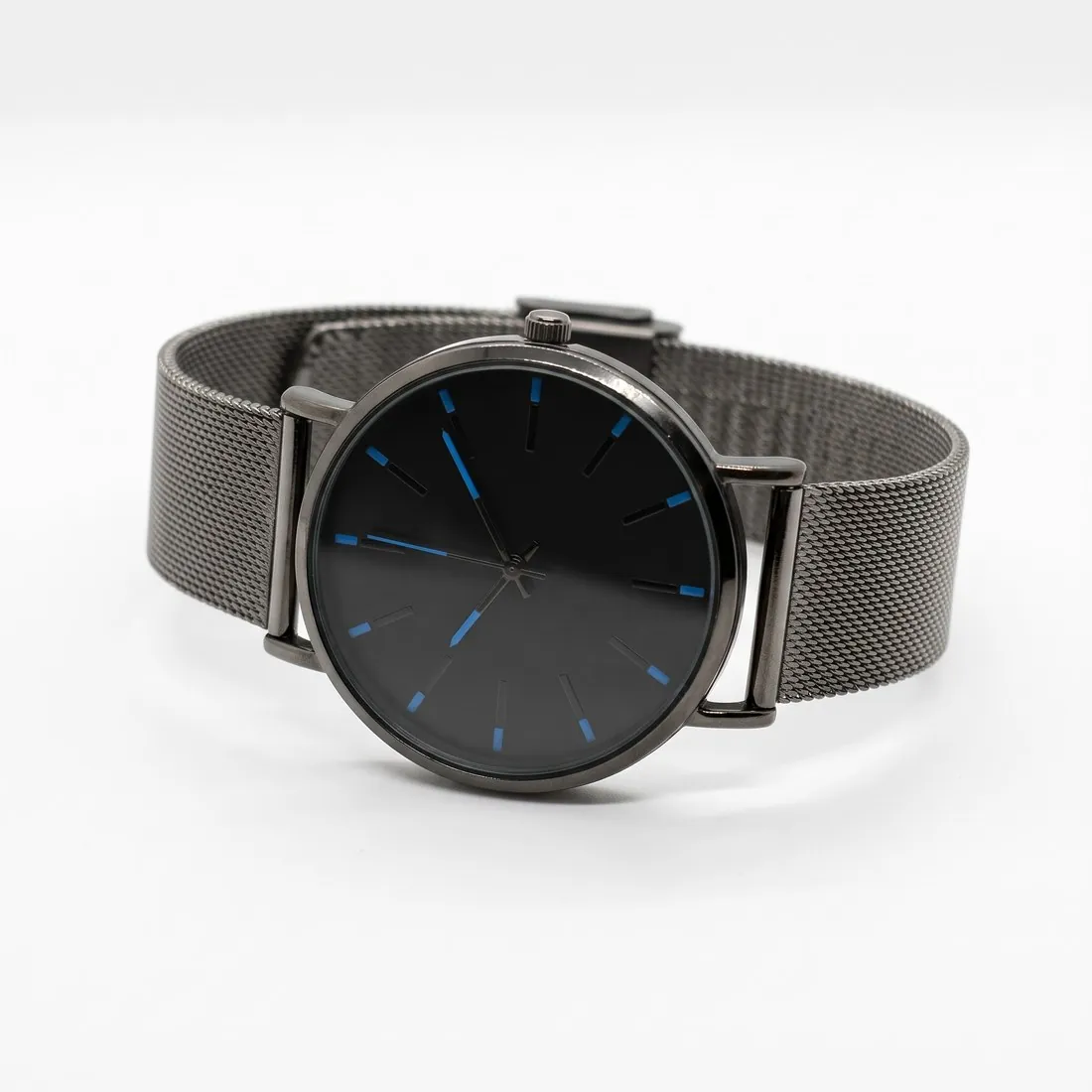
The main photo has to match what is sold. For a bundle it shows every item; for a single item it shows no variations, so a colour range belongs in later pictures. It shows the whole item face-on, and since it appears in search results, a cut edge or stray accessory travels there with it.
Matching each picture to a Herofab tool
For a new item, Packshot studio's front view on white gives the face-on main photo, and a shiny piece can stand on studio grey instead, as a darker backdrop may suit reflective items. For a used item, Remove background cuts the photographed piece out without redrawing it, so scuffs and patina stay as the camera recorded them.
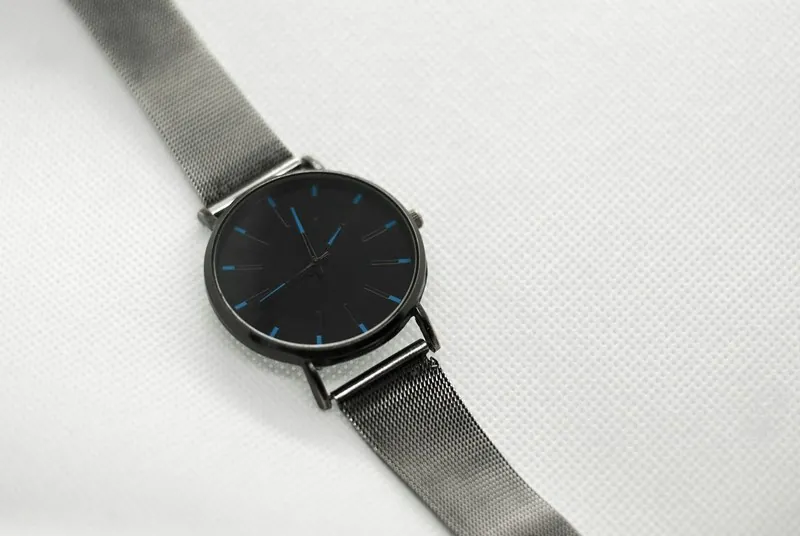
Variations and close-ups fill the later pictures. Colour variants recolours a finished image into other shades for a listing sold in several colours, each compared with the real colour. Detail shot frames a logo, the stitching or the hardware, and the side and top-down views of Packshot studio add further angles.
First picture, gallery order and file preparation
The first picture is the main photo; after it, the rules set no sequence. Main photo, other angles, close-ups and then variations is one workable order for a long gallery. This marketplace is among Herofab's download sizes, so every delivered image can be taken at the recommended square, uncropped and with its AI marker kept.
For photos from elsewhere, the free resizer preset pads a picture to the same square, and the checker preset tests a main photo: it reads the background along the edges, reports a product touching the frame as cut off, and shows a background recommendation as a note rather than a fail.