Language: EN
Start free

An AI clothes changer, built for sellers.

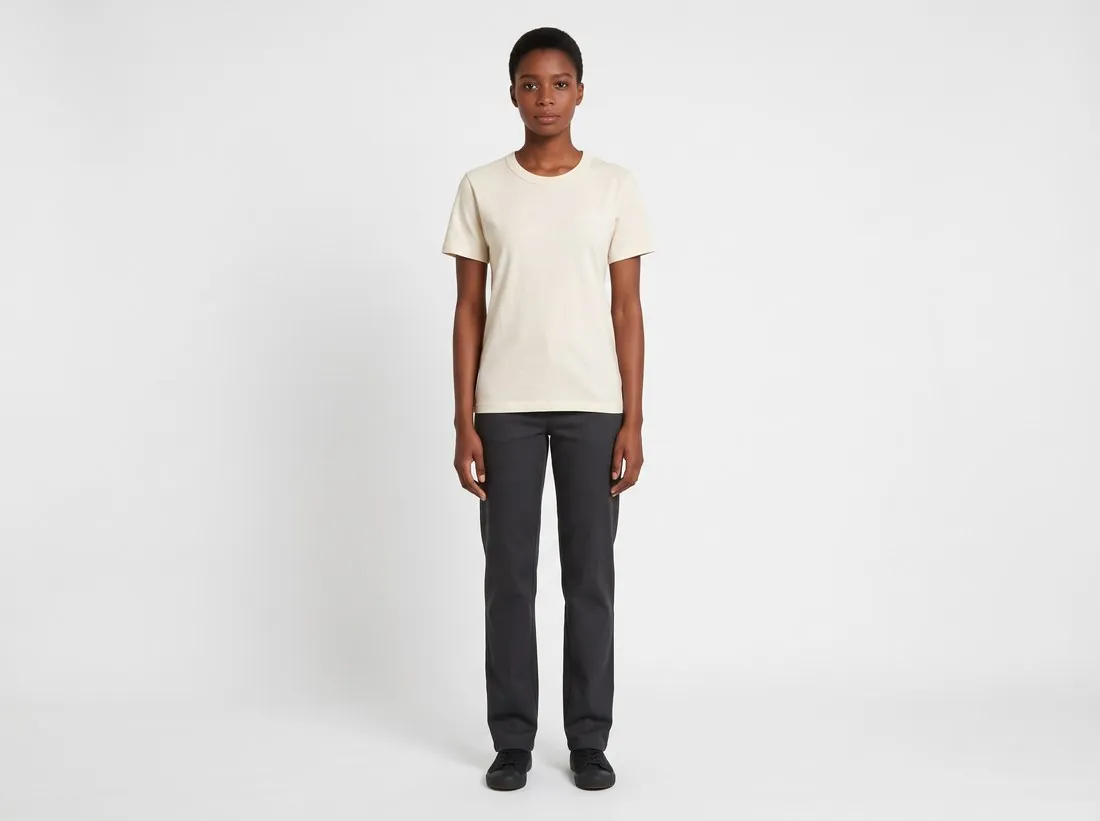
Herofab changes what a model wears to the garment a seller has photographed. It is a product-photo tool: the garment comes from a hanger or flat-lay photo, and the model is ready-made, created in the app, or a person whose photo the seller has permission to use.

Model wearing the ecru T-shirt with dark trousers, full length on white · Virtual try-on
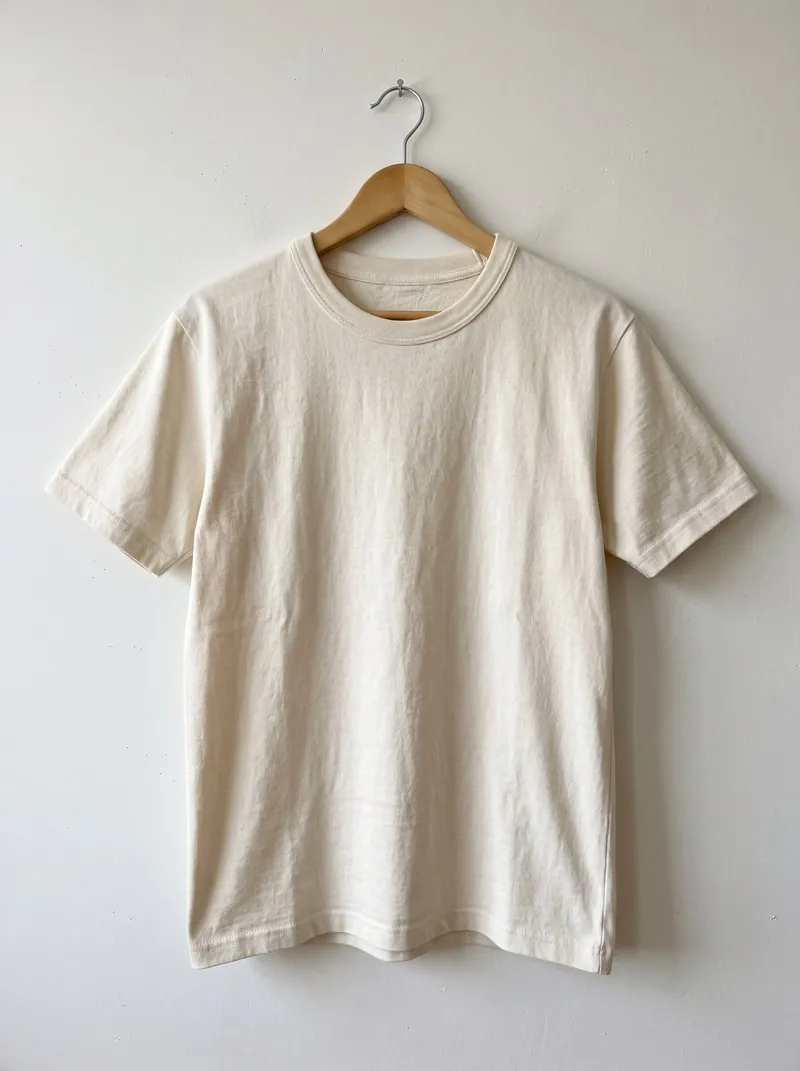
Source photo. Made with Herofab · Virtual try-on
Worth knowing

What changing clothes means in Herofab.

  1. 1

    The garment comes from a real product

    Nothing is invented from a text prompt. The source is a photo of the actual item for sale, and Herofab is briefed to keep its fabric, shape, colours, buttons, print and logos, because a product image has to show the item that will be shipped.

  2. 2

    Three ways to choose the model

    A ready-made studio model; a model created by gender, age range, ethnicity, body type and hair; or a model photo the seller already holds. For the last option the app asks the seller to confirm that the person in the photo has given permission.

  3. 3

    Made for listings, marked as AI

    Models made by Herofab are synthetic, not photographed people, and every image carries a machine-readable AI marker in the file. Delivery is in 2K, or 4K as an option, and any image can be downloaded in marketplace sizes without cropping.

Source photo

The garment photo a clothes changer needs.

  • Photograph one garment, fully visible and straight on, on a hanger, a mannequin, a bed or a sofa; a phone is enough.
  • Unfold it completely. A sleeve tucked behind the body or a hem folded under is missing from the photo, and what is missing cannot be added back faithfully.
  • For a model photo of your own, use an image in which the person is clearly visible, and only one you have that person's permission to use.

Where the garment comes from and who wears it

Virtual try-on reads the garment from one required photo of its front; a photo of the back and a close-up of a detail can be added. The brief is to dress the model in that garment and to keep it as photographed: prints, logos and lettering, the number and position of buttons, zips and pockets, the colours, and the cut with its sleeve length, hem length and collar.

The person is the second input, and it is optional. A ready-made model or a model created in the app needs no confirmation, because Herofab generated that image. A photo of a real person is accepted as the model only when the seller confirms permission to use it, and a model from the library and a model photo cannot be combined in one request. With either chosen, the person comes from that image and the woman or man setting is not used. With neither, a model is drawn for the image.

Four different jobs that are called changing clothes

Changing clothes can mean four different jobs, and each has its own tool. Putting a photographed garment on a model is Virtual try-on, the tool on this page. Showing the same garment in another colour is Colour variants: it recolours the product in an existing image, from a fixed palette or from a colour reference photo, and is briefed to change the base colour only, so that the texture, the stitching and the folds stay.

Showing the same garment in another cloth is Fabric studio. It needs two photos, the garment and a fabric swatch; the colour, material, texture and pattern come from the swatch, while the cut, the seams, the buttons and the pockets are briefed to stay. Giving the model another stance is Change pose, which starts from an on-model image and is briefed to keep the same person, garment, background and light.

What to compare with the garment before publishing

The garment in the image is a new rendering, so the piece itself is the reference. Read prints and lettering at full size, count the buttons and pockets, and compare the collar, the sleeve length and the hem. A brand, size or care label sewn inside the neck is briefed to stay inside; one that shows on the outside is a reason to generate again. The size setting, from XS to XXL, steers how the fit is drawn and measures nothing.

A model photo of the seller's own adds checks. The tool has no setting for keeping the clothes worn in that photo: the brief completes the look around the product with plain, neutral pieces, such as dark trousers under a top, or with outfit photos the seller uploads. Compare the face, the build and the hands with the model photo and, where that photo's own background was selected, the setting behind the person.

Questions

AI clothes changer, answered.

Can I change the clothes on a photo of myself?

Herofab is a product-photo tool for sellers, not a personal fitting room. A seller who models their own range can upload their own photo as the model photo and confirm permission; the result is a product image of the garment, not a guide to how it would fit that person.

Whose photo may I upload as the model?

Only a photo the seller has permission to use, and the app asks for that confirmation. Sellers without such a photo can pick a ready-made model or create one, and save it to their library for later products.

Does the tool keep the background of my model photo?

It can. The background options are studio white, studio grey, outdoor, lifestyle, the model photo's own, or an image the seller supplies. With the model photo's own background selected, the setting of that photo is the one used.

Does the model keep the clothes worn in the model photo?

The tool has no setting for that. Around the product the brief completes the look with plain pieces: dark straight-leg trousers and simple shoes with a top, a neutral t-shirt tucked in with a bottom, simple footwear with a dress. A seller who wants particular pieces uploads them as outfit photos, and the product is briefed to stay the focus of the image with nothing covering it.

What happens if permission for a model photo is not confirmed?

The job is not created. A photo of a person uploaded as the model is accepted only with the seller's confirmation of permission, and that confirmation is recorded with the request. Ready-made models and models created in the app need no confirmation, because they are synthetic images made by Herofab and not photographed people.

How much does it cost?

5 credits per image, plus one credit for 4K. In US dollars that is $0.20 to $0.60 per image before tax, from the largest plan to the smallest credit pack. The cost is shown before you generate, and if a job fails the credits are returned. The 20 free credits at sign-up cover 4 images with this tool.

Examples by product
Get started

Your next collection, shot this week.

20 credits at sign-up, no card required. Images made with free credits carry a watermark. Herofab also removes the watermark from those images once credits are purchased.